
For your site to be available to the public, you’ll need to configure your domain…
For your site to be available to the public, you’ll need to configure your domain settings. Specifically, you’ll need to add an A Record to your domain registrar to point to the IP address of your server.
Before you get started, find the IP address for your server, either from the Hosting Welcome Email or log in to your customer account, and check the IP address under Services > Cloud Hosting > Product details.
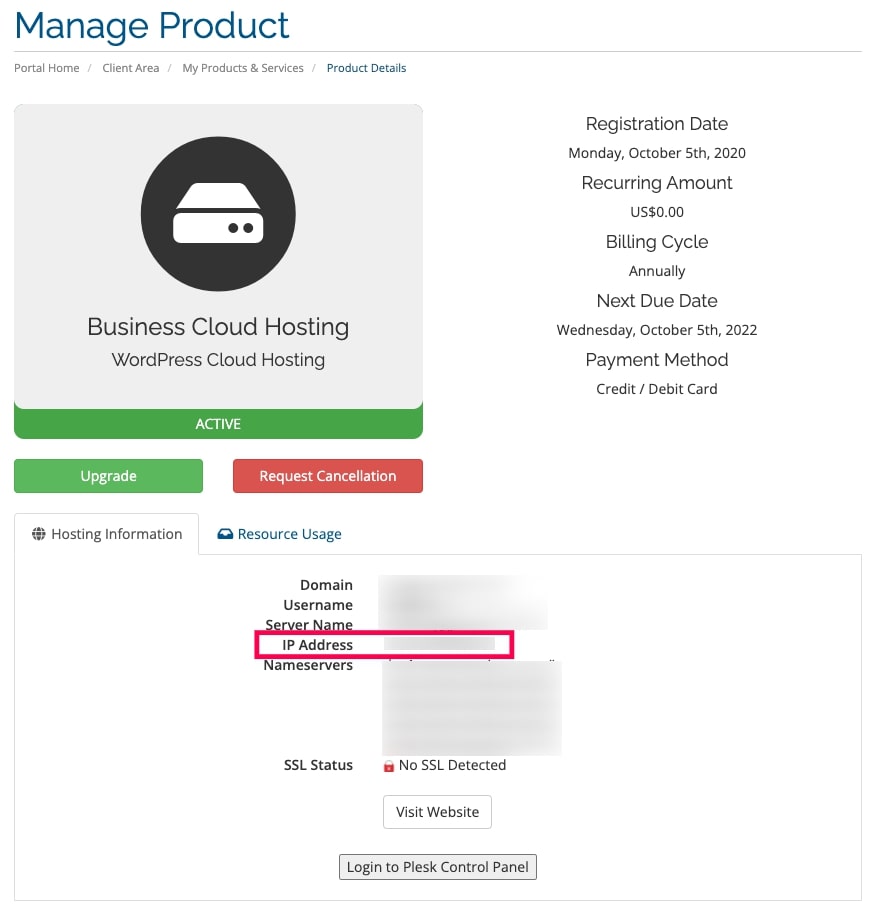
Then, you’ll need to visit your domain registrar, in this case Name.com, and perform the following steps.
- Log in to your Name.com account and click My Account.
- Click my domains on the left side of your screen.
- Click the domain name you would like to manage.
- Click DNS Records on the left side.
- Leave the drop-down menu Type as A. Leave the Host field blank. Insert the IP address provided in the Eggplant Customer Panel (shown above) in the answer field. Then click the Add Record button.
- You should also create another record for www in the Host Name field, select the CNAME Record Type and add the address of your-domain-name.com, in the answer field.
- Click Save to complete the process.